AI Chat Guide
AI Chat is IfAI's core feature - an intelligent conversational interface that understands your codebase and helps you write better code faster.
Quick Start
Opening the Chat Panel
There are several ways to open AI Chat:
- Keyboard Shortcut:
Cmd+K(Mac) orCtrl+K(Windows/Linux) - Command Palette:
Cmd+Shift+P> "AI: Open Chat" - Sidebar: Click the AI icon in the right panel
Interface Overview
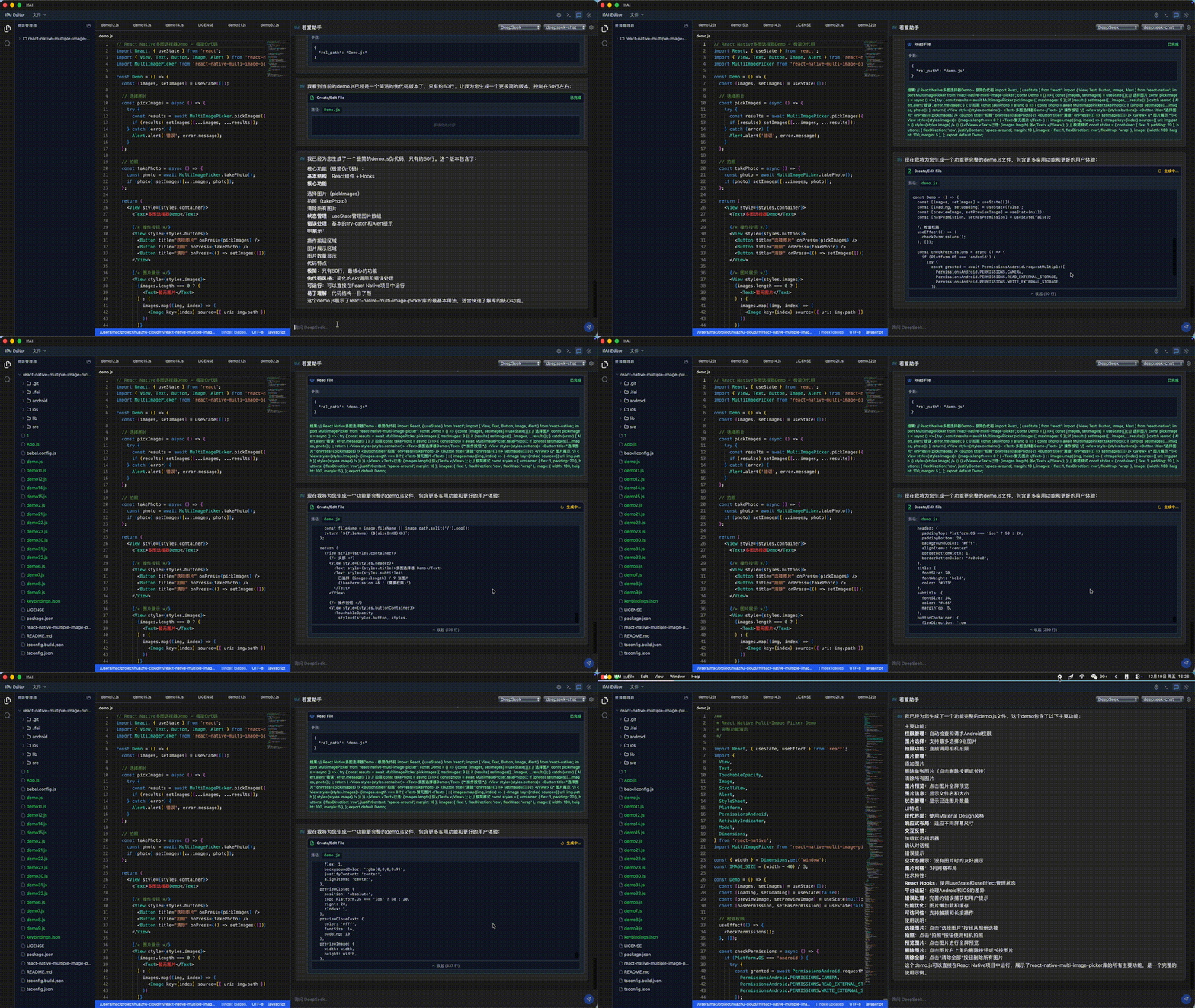
Layout Diagram
┌─────────────────────────────────────────────────────────┐
│  AI Chat                                             [×]    │
├─────────────────────────────────────────────────────────┤
│  💬 Message History                                    │
│  ┌─────────────────────────────────────────────────┐   │
│  │ You: How do I implement authentication?         │   │
│  │                                                  │   │
│  │ 🤖 AI: I'll help you implement JWT auth...      │   │
│  │     [Code Block]                                │   │
│  │     [Insert] [Copy] [Retry]                     │   │
│  └─────────────────────────────────────────────────┘   │
│                                                         │
│  [📎 Attach Files]  [🖼️ Add Image]                     │
│  ┌─────────────────────────────────────────────────┐   │
│  │ Type your message...                    [Send]   │   │
│  └─────────────────────────────────────────────────┘   │
│                                                         │
│  Context: auth.ts (352 lines)  +2 files                 │
└─────────────────────────────────────────────────────────┘Main Interface Elements
- Message Area: Conversation history with AI
- Code Actions: Insert, copy, retry buttons for code blocks
- Context Bar: Shows currently included files
- Attach Buttons: Add files or images to conversation
- Input Box: Type your questions or requests
Context Awareness
IfAI's AI Chat has context awareness - it automatically includes relevant information from your codebase.
What AI Sees
By default, AI Chat includes:
| Context Type | Description |
|---|---|
| Current File | The file you're currently editing |
| Recently Viewed | Files you've recently opened |
| Symbol Relationships | Functions, classes, imports/exports |
| Project Structure | Directory layout and file organization |
| Conversation History | Previous messages in current session |
Managing Context
View Included Context
The context bar at the bottom of the chat panel shows:
Context: auth.ts (352 lines) +2 files
Add Specific Files
Mention file names in your message:
Check utils/auth.ts and helpers/api.tsOr use the attach button to manually select files.
Remove Context
To exclude sensitive or irrelevant files:
- Click the context bar
- Uncheck files you want to exclude
- AI will re-analyze with updated context
Context Optimization
For best results, focus context on 3-5 relevant files. Too much context may reduce response quality.
Conversation Features
Multi-turn Conversations
AI Chat maintains conversation context, allowing you to:
Ask Follow-up Questions:
You: Create a login form AI: [Provides login form code] You: Add password validation AI: [Updates code and adds validation]Refine Responses:
You: Explain this function AI: [Provides explanation] You: Explain it more simply AI: [Provides simplified explanation]Iterate on Code:
You: Write a sorting algorithm
AI: [Provides implementation]
You: Optimize for space complexity
AI: [Provides optimized version]
Streaming Responses
AI responses stream in real-time, showing progress as they're generated:
- Instant Feedback: See the response as it's being written
- Early Stopping: Can stop generation if response is going in wrong direction
- Progressive Understanding: Start reading before completion
Code Generation
Ask AI to generate code based on specific requirements:
Create a user profile card React component with:
- Profile picture
- Name and email
- Edit button
- Use Tailwind CSS for stylingAI will generate production-ready code with correct imports and structure.
Error Diagnosis
Paste error messages directly into AI Chat:
I'm getting this error:
TypeError: Cannot read property 'map' of undefined
  at UserProfile.tsx:15:23

This happens when I render the user list.AI will:
- Analyze the error message
- Check your code
- Identify the root cause
- Suggest fixes
Code Explanation
Select code and request explanation:
Explain what this useEffect hook doesOr use the /explain slash command for instant explanation.
Slash Commands
Slash commands provide quick access to common AI operations:
| Command | Description | Example |
|---|---|---|
/explain | Explain selected code | Explain this function |
/fix | Fix errors in selection | Fix the type error here |
/test | Generate unit tests | Generate tests for this component |
/refactor | Refactor code | Refactor for readability |
/optimize | Optimize performance | Optimize this loop |
/document | Add documentation | Add docs for this API |
Using Slash Commands
Type / in chat input to see available commands:
/ [explain] [fix] [test] [refactor] [optimize] [document]Or select code first, then use the command:
- Select code in editor
- Press
Cmd+K - Type
/fix - AI analyzes and fixes selection
Advanced Features
Inline AI
Quick edits without leaving the editor:
- Select code to modify
- Press
Cmd+K(orCtrl+K) - Describe changes:
Add error handling to this function - AI provides inline suggestions
File References
AI can read and reference multiple files:
Compare authentication logic in these files:
- src/auth/jwt.ts
- src/auth/session.tsAI will analyze both files and provide comparison.
Code Selection Actions
Right-click selected code to perform AI operations:
- Explain Code: Get detailed explanation
- Refactor: Improve code quality
- Add Tests: Generate unit tests
- Find Bugs: Identify potential issues
- Optimize: Improve performance
AI Providers
Cloud Providers
IfAI supports multiple cloud AI providers:
OpenAI
- Models: GPT-4, GPT-4 Turbo, GPT-3.5 Turbo
- Best For: Complex reasoning, creative tasks
- Setup: Settings > AI Providers > OpenAI > Enter API key
Anthropic Claude
- Models: Claude 3.5 Sonnet, Claude 3 Opus
- Best For: Long conversations, detailed explanations
- Setup: Settings > AI Providers > Anthropic > Enter API key
DeepSeek
- Models: DeepSeek-V3, DeepSeek-Coder
- Best For: Code generation, technical tasks
- Setup: Settings > AI Providers > DeepSeek > Enter API key
Zhipu AI
- Models: GLM-4.7, GLM-4.6, GLM-4.5V
- Best For: Chinese language support, multimodal
- Setup: Settings > AI Providers > Zhipu > Enter API key
Kimi (Moonshot)
- Models: Moonshot-v1-8k, Moonshot-v1-32k
- Best For: Long context windows
- Setup: Settings > AI Providers > Kimi > Enter API key
Local Models
Use local LLMs for privacy and cost savings:
Ollama Integration
- Recommended Models: Qwen2.5-Coder, Llama 3.2
- Benefits: No API costs, local data
- Setup: Local Model Setup Guide
Hybrid Mode
Configure IfAI to use local models for simple tasks and cloud APIs for complex tasks. See Settings Reference.
Tips and Best Practices
Effective Prompts
- Be Specific: Instead of "fix this", say "fix the null pointer exception on line 23"
- Provide Context: Include relevant file names and error messages
- Use Examples: Show example code of what you want
- Iterate: Refine your request if first response isn't perfect
Token Management
- Monitor Usage: Check token count in context bar
- Clear History: Clear old conversations to save tokens
- Optimize Context: Only include relevant files
Privacy Considerations
Cloud Providers: Code is sent to external servers
- Check provider privacy policies
- Avoid sharing sensitive data (API keys, passwords)
Local Models: Everything stays on your machine
- No data leaves your device
- Best for sensitive projects
Troubleshooting
"Cannot connect to AI provider"
Solutions:
- Check API keys in settings
- Verify network connection
- Check provider status page
- Try switching providers
"Exceeded context limit"
Solutions:
- Remove some files from context
- Clear chat history
- Switch to model with larger context window
- Use local model with unlimited context
Slow Response
Solutions:
- Reduce number of files in context
- Switch to faster model
- Use local model for instant response
- Check network speed
Next Steps
- Composer Guide - Multi-file AI editing
- Local Model Setup - Configure local models
- Settings Reference - Customize AI behavior
- Basic Usage - More features and workflows