Basic Usage
This guide covers the essential features and workflows of IfAI.
The Interface
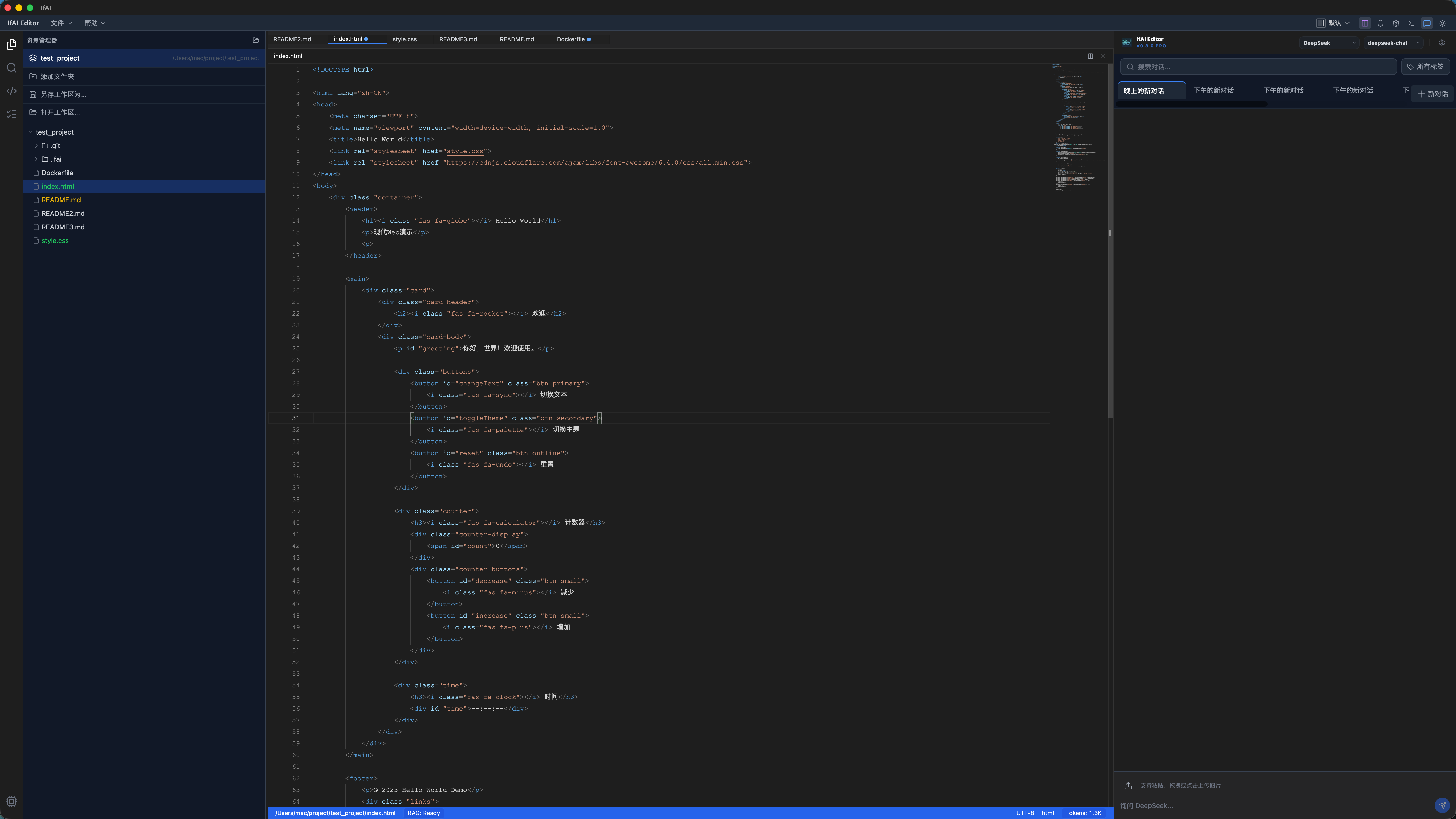
Layout Overview
┌─────────────────────────────────────────────────────────┐
│  IfAI                            [ ] [-] [X]            │
├──────────┬──────────────────────────────────┬───────────┤
│          │                                  │           │
│  File    │      Monaco Editor               │  AI Chat  │
│  Tree    │      Your code here...           │  Panel    │
│          │                                  │           │
├──────────┴──────────────────────────────────┴───────────┤
│  Terminal                                          Status │
└─────────────────────────────────────────────────────────┘File Operations
Opening Files
From File Tree:
- Click on a file to open it
- Use arrow keys to navigate, Enter to open
From Command Bar (Cmd+P):
- Type filename to fuzzy search
- Press Enter to open
Recent Files (Cmd+R):
- Quick access to recently opened files
Creating Files
- Right-click in File Tree
- Select "New File"
- Enter filename with extension
File Actions
| Action | Shortcut | Description |
|---|---|---|
| Save | Cmd+S | Save current file |
| Save All | Cmd+Shift+S | Save all files |
| Close | Cmd+W | Close current file |
| Revert | Cmd+Shift+P > "Revert File" | Discard changes |
AI Chat Panel
Opening AI Chat
- Press
Cmd+K(Mac) orCtrl+K(Windows/Linux) - Or click the AI icon in the sidebar
AI Chat Features
Context Awareness
AI Chat automatically includes:
- Currently open file
- Recently viewed files
- Project structure overview
- Previous conversation context
Code Generation
Ask AI to generate code:
Create a function that validates email addresses using regexAI will insert the code directly into your editor.
Error Diagnosis
Paste error messages:
I'm getting this error:
TypeError: Cannot read property 'map' of undefinedAI will analyze the error and suggest fixes.
Code Explanation
Select code and ask:
Explain what this function doesComposer Mode
For multi-file editing, use Composer (Cmd+Shift+K):
- Open Composer
- Describe the changes needed
- AI proposes changes across multiple files
- Review and accept/reject each change
Code Navigation
Go to Definition
- Shortcut:
F12orCmd+Click - What it does: Jumps to where a symbol is defined
- Works for: Functions, classes, variables, types
Find References
- Shortcut:
Shift+F12 - What it does: Shows all places a symbol is used
- Use case: Understand impact of changes
Symbol Search
- Shortcut:
Cmd+Shift+O - What it does: Search for symbols across your project
- Tip: Use
@prefix to filter by type
Terminal Integration
Opening Terminal
- Shortcut:
Ctrl+`(backtick) - Multiple terminals: Click the + icon
Running Commands
Execute any shell command:
npm install
npm run dev
git statusAI + Terminal
AI can execute commands for you:
Run the tests and fix any failuresAI will:
- Run the tests
- Analyze output
- Fix the code
- Re-run tests
Command Bar
The Command Bar (Cmd+Shift+P) gives you quick access to:
Commands
- File operations
- Editor settings
- AI features
- Git operations
Files
- Fuzzy search files by name
- Press Enter to open
Symbols
- Search functions, classes, variables
- Navigate directly to symbol
Code Editing
Multi-Cursor Editing
- Add cursor:
Option+Click(Mac) orAlt+Click(Windows) - Add cursor above:
Cmd+Option+Up - Add cursor below:
Cmd+Option+Down - Select all occurrences:
Cmd+Shift+L
Code Snippets
Type trigger and press Tab:
// Type "clg" and press Tab
console.log(); // Cursor is inside parentheses

// Type "fn" and press Tab
function () {
  // Cursor is here
}Auto-Import
Start typing a symbol, and IfAI will:
- Suggest completions
- Auto-import the symbol if needed
Git Integration
Git Status
- See changed files in the File Tree
- Visual indicators:
M(modified),A(added),D(deleted)
Git Operations
- Diff: Click a changed file to see diff
- Commit:
Cmd+Shift+P> "Git: Commit" - Push/Pull: Available in Command Bar
AI + Git
Create a commit message for these changesAI will generate a conventional commit message.
Settings
Opening Settings
- Shortcut:
Cmd+,(Mac) orCtrl+,(Windows/Linux) - Or click the gear icon
Key Settings
AI Provider
Configure which AI model to use:
- Cloud API (OpenAI, Claude, etc.)
- Local LLM (Ollama)
Editor
- Font size
- Tab size
- Theme (dark/light)
- Line numbers
Keybindings
Choose your preferred keybinding style:
- VS Code
- IntelliJ
- Vim
Tips and Tricks
1. Quick AI Chat
Type / in AI Chat to access quick commands:
/explain- Explain selected code/fix- Fix errors in selected code/test- Generate tests for selected code/refactor- Refactor selected code
2. Inline AI
Select code and press Cmd+K to:
- Ask questions about the selection
- Request modifications
- Get explanations
3. File Context
AI automatically reads files you mention:
Look at utils/auth.ts and helper/api.ts4. Screenshot Analysis
Paste a screenshot (Cmd+V) in AI Chat to:
- Analyze UI designs
- Debug visual issues
- Get layout suggestions
Next Steps
- AI Chat Guide - Deep dive into AI conversations
- Composer Guide - Multi-file editing mastery
- Keyboard Shortcuts - Speed up your workflow
- Settings Reference - Customize your experience